
How to Automate Inbox Triage and Prioritization with AI
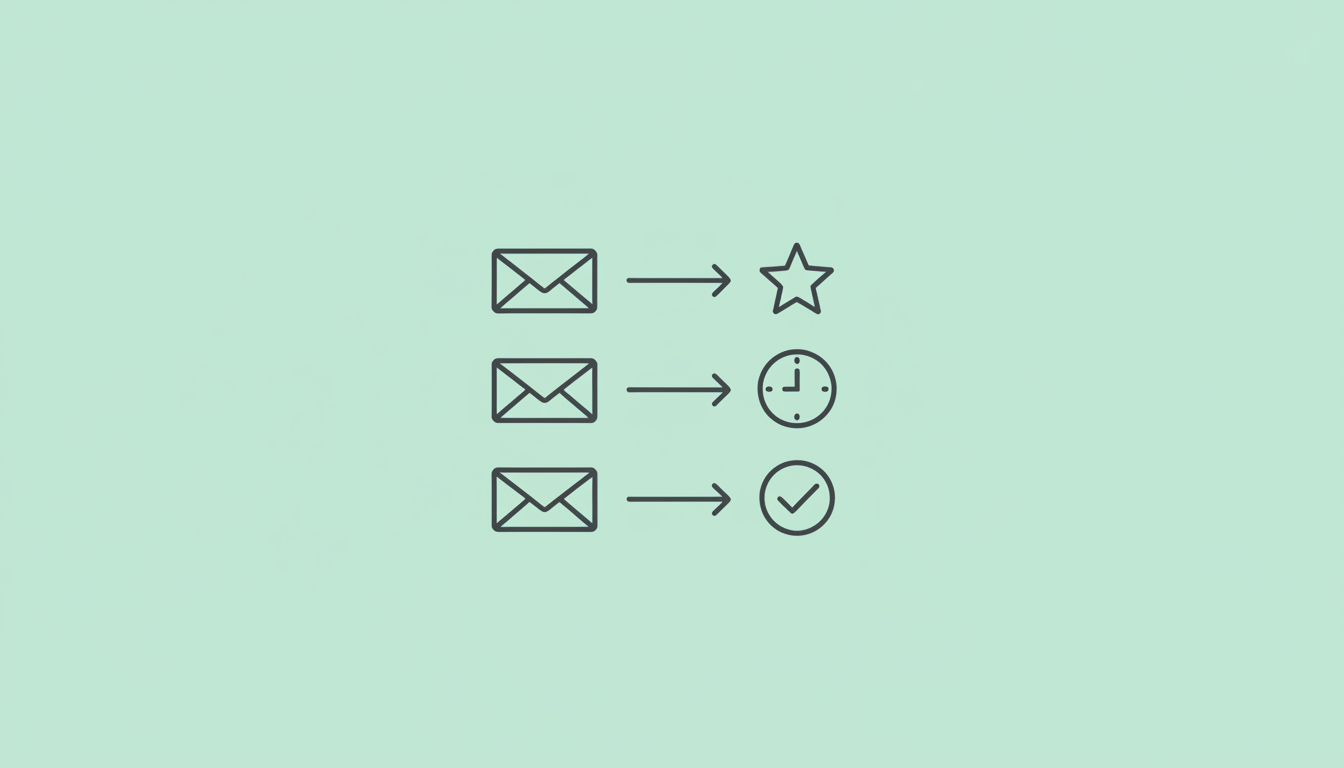
AI inbox triage automatically classifies emails into categories (needs reply, FYI, marketing), drafts appropriate responses, and surfaces action items in a single pass. This reduces the 28% of workweek (11+ hours) professionals spend on email to focused review sessions of pre-sorted, pre-drafted messages.
Learn how AI can sort your inbox, categorize emails by importance, draft replies, and surface action items, all while respecting labels you've already applied. Process your inbox in minutes, not hours.
TLDR
Consul's inbox triage automatically classifies your emails into categories you define, drafts appropriate replies, and detects action items, all in a single pass. It respects labels you've manually applied and never overwrites your organization. You start each day with a sorted inbox and suggested replies ready for your approval.
What This Workflow Does
Email overwhelm is real. Most professionals receive 50-200 emails daily. Processing each one (deciding importance, determining next action, filing appropriately) creates significant cognitive overhead.
Inbox triage handles this automatically:
- Classifies incoming emails into custom categories you define
- Assesses priority based on sender, content, and context
- Drafts replies for emails that warrant responses
- Detects action items hidden in email threads
- Applies labels while respecting your manual organization
- Generates a daily brief summarizing what needs attention
Key Points
- Custom categories: Define your own classification system
- Intelligent prioritization: AI understands what matters to you
- Draft generation: Replies ready for your approval
- Action detection: Never miss embedded commitments
- Label respect: Won't overwrite your manual organization
- Daily summary: Start each day knowing what needs attention
How It Works
Step 1: Define Your Categories
You tell Consul how you organize email. Common categories include:
- Needs Response: Emails requiring a reply from you
- FYI: Informational emails, no action needed
- Meeting Requests: Scheduling-related emails
- Urgent: Time-sensitive matters requiring immediate attention
- Newsletters: Subscriptions and marketing emails
- Delegated: Items for your team to handle
You can create any categories that match your workflow. Consul learns to apply them consistently.
Step 2: Set Draft Preferences
For each category, you specify whether Consul should:
- Always draft a reply: For categories where responses are routine
- Never draft a reply: For FYI or newsletter categories
- Draft when appropriate: Let AI decide based on content
This prevents unnecessary drafts while ensuring important emails get response suggestions.
Step 3: Process Incoming Email
When new email arrives, Consul runs triage in a single, efficient pass:
Classification: Consul reads the email content, sender relationship, and thread context to assign the appropriate category.
Priority Assessment: Beyond category, Consul assesses urgency based on:
- Sender importance (executives, clients, key contacts)
- Time-sensitive language ("urgent", "by EOD", "deadline")
- Thread history (ongoing conversation vs. new thread)
- Content significance (decisions, commitments, requests)
Draft Generation: If the category calls for it, Consul drafts an appropriate reply:
- Matches your writing style (formal, casual, brief, detailed)
- Addresses the specific content of the email
- Includes relevant context from your calendar or previous threads
- Waits for your approval before sending
Action Detection: Consul identifies commitments and requests embedded in emails:
- "Can you send me the report by Friday?"
- "Let's plan to follow up next week"
- "I'll need your input before the meeting"
These become actionable items you can track.
Step 4: Label Application
Consul applies Gmail labels to organize your inbox. Key behaviors:
Respects manual labels: If you've already labeled an email, Consul won't overwrite it. Your organization takes precedence.
Consistent application: The same type of email gets the same label every time.
Thread-aware: Labels apply appropriately to entire threads, not just individual messages.
Step 5: Daily Brief Generation
Each morning, Consul prepares a summary:
- New emails needing response (count and highlights)
- Urgent items flagged for immediate attention
- Today's calendar with meeting context
- Action items due from previous emails
- Suggested follow-ups for unanswered threads
This brief replaces the overwhelming experience of opening your inbox cold. You start knowing exactly what needs attention.
Setting Up Inbox Triage
Connect your Gmail
Link your Gmail account to Consul. This enables email reading and label management.
Define your categories
Create the classification system that matches how you work. Start simple; you can add categories later.
Example setup:
- Urgent (red label)
- Needs Response (yellow label)
- Meeting Requests (blue label)
- FYI (gray label)
- Newsletters (green label)
Set draft preferences
For each category, choose:
- Always draft replies
- Never draft replies
- Auto (AI decides based on content)
Configure your writing style
Tell Consul your preferred tone:
- Formal or casual
- Brief or detailed
- Any signature or sign-off preferences
Run initial triage
Let Consul process your recent emails to calibrate classification. Review a sample to ensure categories are applied correctly.
What You See Each Day
Morning Brief
When you start your day, Consul shows:
📬 12 new emails overnight
  - 3 need your response
  - 2 meeting requests
  - 7 FYI/newsletters

⚡ 1 urgent item
  - Client escalation from Sarah (arrived 11pm)

📅 Today's calendar
  - 9am: Team standup
  - 11am: Client review
  - 2pm: Board prep

✅ 2 action items due
  - Send proposal to Jane (committed Tuesday)
  - Review contracts (deadline today)
Categorized Inbox View
Your inbox organized by priority:
Urgent (1)
- [Sarah Chen] Issue with deployment - needs immediate attention
Needs Response (3)
- [Mike Johnson] Question about Q2 projections
- [Lisa Park] Partnership opportunity
- [Tom Davis] Feedback on presentation
Meeting Requests (2)
- [Alex Wong] Coffee chat next week?
- [Board EA] Board meeting scheduling
FYI (7)
- Various newsletters and notifications
Ready Drafts
For emails marked "Needs Response," Consul prepares drafts:
To: Mike Johnson Subject: Re: Question about Q2 projections
Draft ready for review:
Review and approve to send"Hi Mike, The Q2 projections you asked about show a 15% increase over Q1, primarily driven by the new enterprise contracts. I've attached the detailed breakdown. Let me know if you need additional context for your presentation."
Customization Options
Priority Rules
Define what makes an email urgent for your context:
- Specific senders always flagged as priority
- Keywords that trigger urgent classification
- Domains that warrant immediate attention
- Thread patterns (escalation, multiple stakeholders)
Category Behaviors
Fine-tune how each category works:
- Notification settings: Get alerts for urgent, batch notifications for FYI
- Archive behavior: Auto-archive newsletters after reading
- Response timing: Draft follow-ups for overdue items
Writing Style Per Context
Different relationships warrant different tones:
- Formal for clients and executives
- Casual for close colleagues
- Brief for internal requests
- Detailed for external partners
Consul learns these patterns from your existing emails and applies them appropriately.
Common Scenarios
Handling Email While Away
Going on vacation? Consul continues triaging:
- Urgent items get flagged for immediate attention (via mobile notification)
- Routine emails get sorted and queued for your return
- Auto-responses can be drafted for appropriate senders
You return to an organized inbox, not email chaos.
Processing Email Backlog
Behind on email? Consul can process historical emails:
- Triage your last 7/14/30 days of email
- Identify conversations that still need response
- Flag dropped threads that warrant follow-up
- Clean up newsletters and FYI items
Turn a daunting backlog into an organized todo list.
Team Email Management
For shared inboxes or when managing for an executive:
- Route emails to appropriate team members
- Flag items requiring the principal's attention
- Draft responses for delegation
- Track response status across the team
Why This Works
Single-Pass Efficiency
Traditional email processing requires multiple decisions per email:
- Is this important?
- What category does it belong to?
- Do I need to respond?
- What should I say?
- When do I need to act?
Consul handles all of this in one intelligent pass. You see the result, not the process.
Context Awareness
Consul doesn't just read the current email. It understands:
- Your relationship with the sender
- The history of this thread
- Your calendar and commitments
- Your typical response patterns
This context makes classification and drafting accurate, not generic.
Respect for Your System
Many automation tools impose their own organization. Consul adapts to yours:
- Uses your existing labels
- Respects your manual organization
- Learns your categories over time
- Never overwrites your decisions
You stay in control of how your inbox is organized.
Getting Started
Setting up inbox triage takes about 3 minutes:
- Connect your Gmail account
- Define 3-5 initial categories
- Set draft preferences per category
- Let Consul calibrate on recent emails
Tomorrow morning, you'll have a daily brief waiting. Your inbox will be sorted. Drafts will be ready for approval.
Email processing becomes a 10-minute review instead of an hour-long excavation.
Try this workflow now
Connect your calendar and email to see this workflow in action. Consul will show you exactly what it drafts before anything is sent.
Related Workflows
Daily Executive Briefing: Start Each Day Knowing What Matters
Get a daily briefing that surfaces your important emails, pending actions, and calendar highlights. Consul prepares your morning context so you start focused, not overwhelmed.
How to Schedule Meetings via Email with AI
Learn how AI handles the back-and-forth of email scheduling for you. Consul reads meeting requests, proposes times from your calendar, negotiates with recipients, and books confirmed meetings, all with your approval.